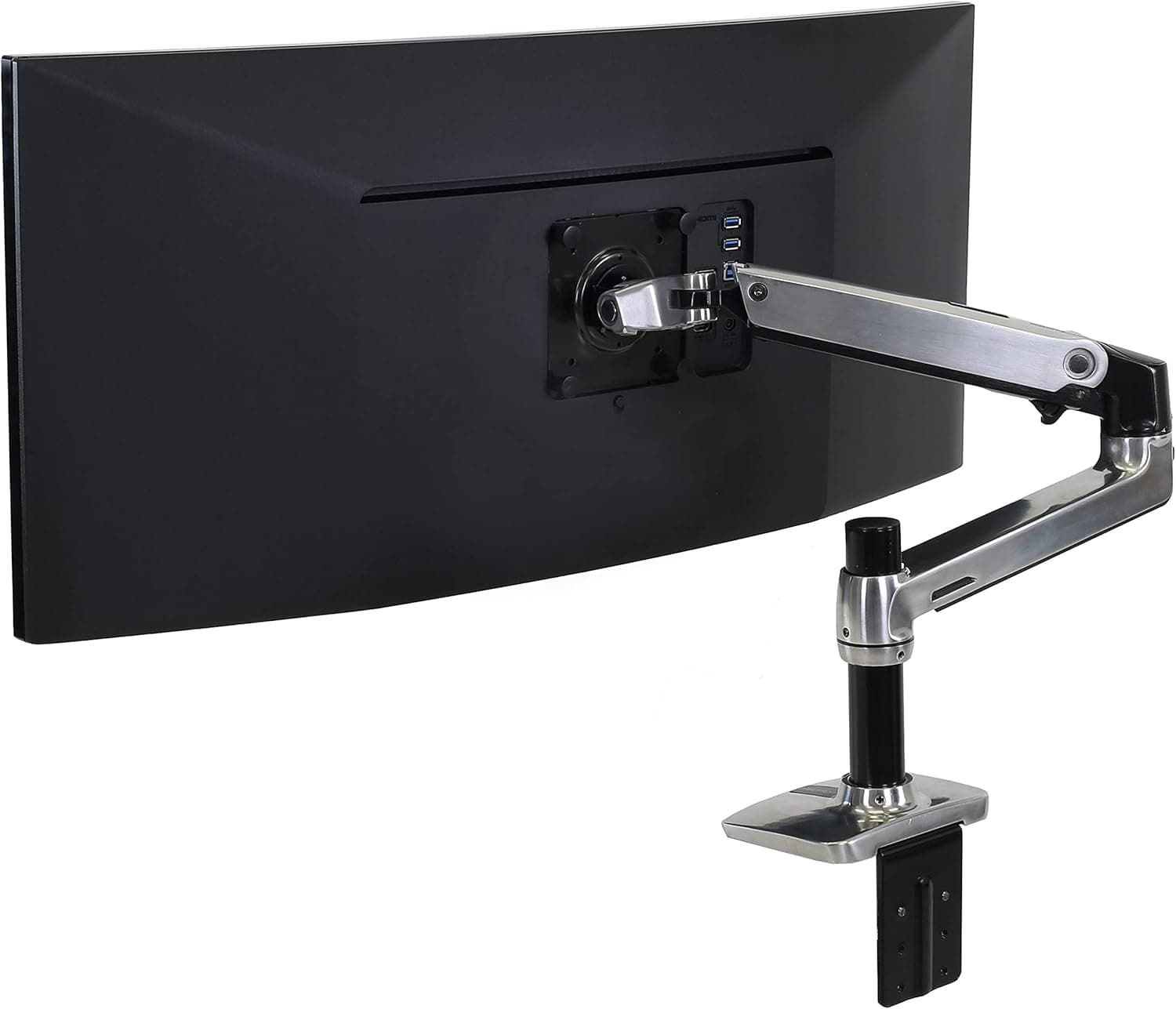
The Apple Studio Display weighs 10.6 pounds without its stand and uses a standard 100x100mm VESA mount pattern, but not every monitor arm can handle its weight reliably. Budget arms rated for lighter displays may sag or drift over time when supporting the Studio Display, leading to a frustrating experience where your screen slowly tilts downward throughout the day. Look for monitor arms rated for at least 15 pounds to provide a comfortable safety margin, and verify that the arm uses a spring or gas-based constant force mechanism rather than simple friction clamps. If you plan to mount two Studio Displays, ensure the dual arm's per-arm weight rating exceeds the display's weight, and consider whether your desk surface can support the combined load concentrated at a single clamp point.
Apple includes a one-meter Thunderbolt cable with the Studio Display, which severely limits how far you can place the display from your Mac. When shopping for a longer replacement, pay close attention to the cable certification level. The Studio Display requires a full Thunderbolt 3 or Thunderbolt 4 cable to support its 5K resolution, USB-C hub functionality, webcam, microphone array, and speakers simultaneously. A basic USB-C cable will not deliver the necessary bandwidth. At lengths beyond one meter, look specifically for active Thunderbolt 4 cables with Intel certification, as passive cables frequently fail to maintain signal integrity over longer distances. Expect to pay $30 to $50 for a quality certified cable in the 2-meter range.
The Studio Display comes in two glass options, and the cleaning approach differs significantly between them. The standard glossy glass can be cleaned with most quality screen cleaning solutions and a soft microfiber cloth. However, if you opted for the nano-texture glass upgrade, Apple explicitly warns against using any liquid cleaners and recommends only the included dry polishing cloth. Using the wrong cleaner on nano-texture glass can permanently damage the etched coating and void your warranty. If you must use a cleaning solution on nano-texture glass, choose an ammonia-free, alcohol-free formula specifically designed for delicate optical coatings, and test on a small edge area first. Regardless of glass type, never use paper towels, tissue, or abrasive cloths on the display.
The Studio Display includes three USB-C ports on its back panel, which can function as a basic hub when connected to your Mac via Thunderbolt. However, these ports are USB 3 speed (up to 10 Gbps), not full Thunderbolt, which limits their usefulness for high-bandwidth peripherals like external SSDs. Before purchasing a separate hub or dock, map out your actual peripheral needs. If you primarily connect a keyboard, mouse, and one storage device, the built-in ports may suffice. But if your setup includes multiple drives, an audio interface, a card reader, and other USB devices, investing in a dedicated Thunderbolt hub gives you significantly more bandwidth and port variety. Consider whether you need the hub to also charge your laptop, as this determines whether a simple hub or a full-powered dock is the better investment.
The Studio Display's 5K Retina panel produces 600 nits of peak brightness, which creates significant contrast between the screen and a dimly lit desk surface. This contrast forces your eyes to constantly adjust between the bright display and the darker surroundings, contributing to eye fatigue during long work sessions. A monitor light bar solves this by illuminating your desk surface to roughly match the display's brightness, creating a more even visual field. When choosing a light bar for the Studio Display, ensure it uses an asymmetric optical design that directs light downward onto your desk rather than forward onto the screen - the glossy display panel will show reflections from any forward-facing light source. Also verify that the light bar's mounting mechanism does not obstruct the built-in webcam centered at the top of the display.
A Studio Display desk setup involves a minimum of two thick cables - the Thunderbolt cable to your Mac and the power cable - plus whatever peripherals you connect to the display's USB-C ports. Without proper cable management, these cables quickly create visual clutter that undermines the premium aesthetic Studio Display owners are paying for. Plan your cable management before finalizing your desk layout. If you are using a monitor arm, choose one with integrated cable channels that can accommodate the Studio Display's relatively thick Thunderbolt cable. Under-desk raceways and cable trays handle the remaining power and peripheral cables effectively. Consider the path from your Mac to the display, from the display to the wall outlet, and from any hub or dock to its various connected devices. A 15-minute investment in proper cable routing during initial setup saves hours of frustration later.

 1/5
1/5


